

Working from home offers incredible flexibility, but it often comes with a hidden cost: suboptimal office setups. Many of us find ourselves hunched over laptops on kitchen tables or perched on dining chairs for hours. This casual approach can lead to serious discomfort, affecting your productivity and long-term health. You deserve a workspace that supports your body, not strains it.
Finding the best ergonomic home office setup for your unique needs can drastically improve how you feel at the end of a long workday.
Incorporating the art of Hygge into your workspace can make your professional hours feel much more restful.
For a deeper dive into specific equipment and workspace layout, check out our companion guide on creating an ergonomic home office for remote workers.
Creating an ergonomic office at home does not require a massive budget or a dedicated room. You can implement practical, actionable changes right now. This guide helps you transform your home office setup into a pain-free zone, allowing you to focus on your work with greater comfort and efficiency.
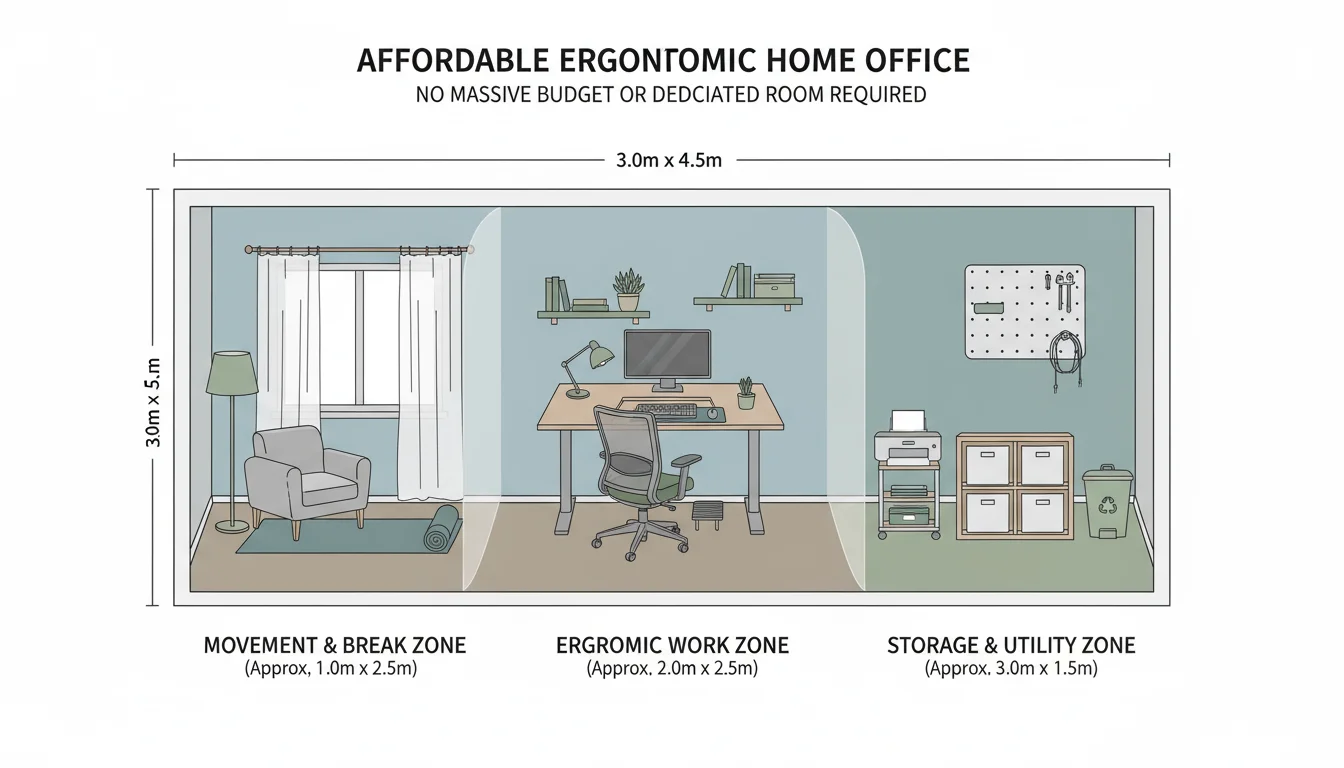

Understanding Ergonomics: Why it Matters for Your Home Office
Ergonomics is the science of designing and arranging workplaces so people and equipment interact most efficiently and safely. Think of it as tailoring your environment to fit your body, rather than forcing your body to fit the environment. For your home office setup, this translates into making adjustments that support natural posture, reduce strain, and prevent repetitive stress injuries.
By optimizing your physical workspace, you are also learning how to reduce stress at home by removing daily physical irritants.
Many people associate workplace ergonomics solely with expensive office furniture, but its principles apply to any workspace. Poor ergonomic design often leads to a range of physical issues. These include neck pain, backaches, wrist strain, headaches, and eye fatigue. Over time, these minor discomforts can escalate into chronic conditions like carpal tunnel syndrome or tension headaches, significantly impacting your quality of life and work productivity. A properly designed ergonomic office, conversely, promotes comfort, reduces the risk of injury, and even boosts your focus and efficiency.
You invest time and effort into your work; invest in your body’s well-being too. Prioritizing workplace ergonomics allows you to sustain long periods of concentration without distraction from pain. It is a proactive step towards a healthier, more productive working life at home.

Assessing Your Current Home Office Setup
Before making changes, take an honest look at your current home office setup. What feels uncomfortable? Where do you notice tension? Observe your posture throughout the day. This self-assessment provides valuable insights into areas needing improvement. Ask yourself these questions:
If you find your current space uninspiring, learning how to create a cozy home office can boost your motivation to stay focused.
Just as you would create a cozy reading nook for relaxation, your work area should be a dedicated space for focus.
- Your Chair: Does your chair offer adequate back support? Can you adjust its height, armrests, and back angle? Do your feet rest flat on the floor or a footrest?
- Your Desk: Is your desk height appropriate for typing? Do you have enough space for your equipment and to move your mouse freely?
- Your Monitor: Is your monitor at eye level? Is it an arm’s length away? Do you experience glare?
- Your Keyboard and Mouse: Do your wrists bend awkwardly when you type or use the mouse? Do you have sufficient wrist support?
- Overall Comfort: Do you feel pain or stiffness in your neck, shoulders, back, or wrists by the end of the day? Do you frequently shift positions, trying to find comfort?
Recognizing early warning signs of discomfort, such as a tingling sensation in your fingers or persistent neck stiffness, is crucial. Addressing these issues promptly prevents them from becoming chronic problems. According to The Spruce, thoughtful organization extends beyond clutter to how you physically interact with your space, directly influencing your comfort and efficiency.
The Foundation: Your Ergonomic Chair
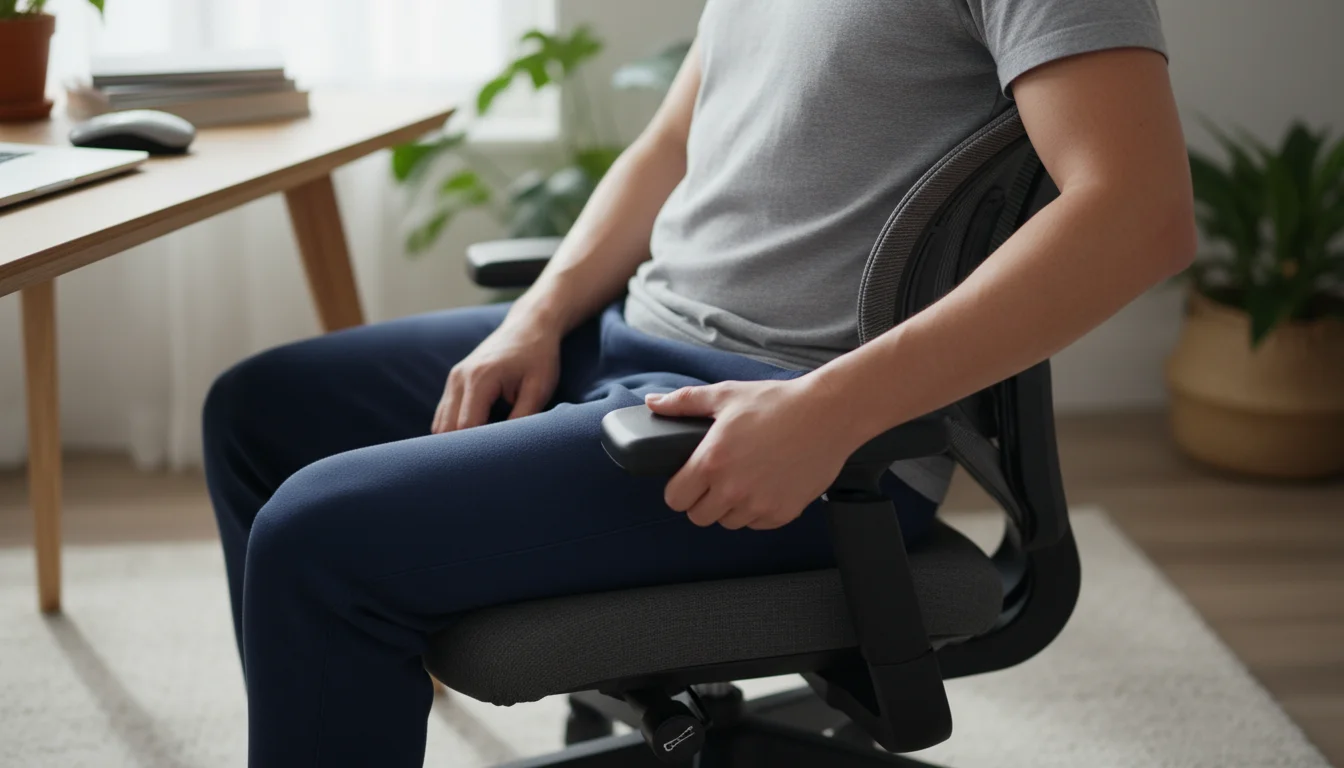
Your office chair forms the cornerstone of an effective ergonomic office. Investing in a good chair is one of the most impactful decisions you can make for your home office setup, as you spend hours seated there. A truly ergonomic chair offers multiple adjustment points, allowing you to customize it to your body’s unique needs.
When you arrange furniture for maximum coziness, you create a more inviting environment that supports both productivity and comfort.
Look for these essential features:
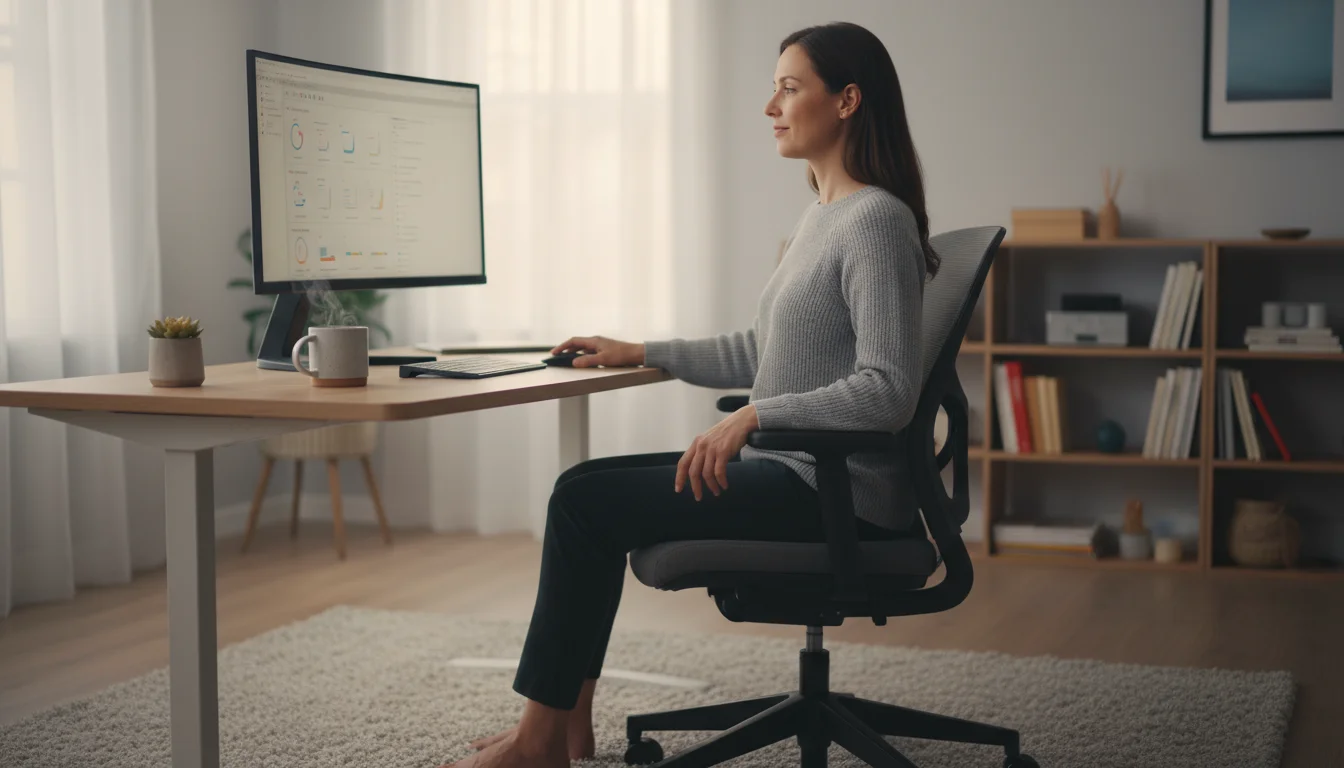
- Height Adjustment: You should be able to adjust the chair height so your feet rest flat on the floor or a footrest, with your knees forming a 90-degree angle. Your thighs should be parallel to the floor.
- Backrest Support: A good ergonomic chair provides lumbar support that mirrors the natural curve of your lower spine. This prevents slouching and maintains good posture. Many chairs allow you to adjust the backrest angle and depth.
- Armrests: Adjustable armrests allow you to support your arms at a comfortable height, taking pressure off your shoulders and neck. Your forearms should be parallel to the floor when typing, with your elbows at a 90-degree angle.
- Seat Depth and Tilt: Adjusting the seat depth ensures a few inches remain between the edge of the seat and the back of your knees, preventing pressure on your circulation. Seat tilt can further enhance comfort.
For those with budget constraints, consider smart alternatives. A well-placed cushion can add lumbar support, and a sturdy box or stack of books can serve as a temporary footrest. Even a balance ball can offer a temporary alternative, but prolonged use requires core strength and frequent breaks to avoid fatigue. Research from Consumer Reports frequently highlights the importance of matching chair features to individual body types and work habits for optimal value and comfort.
Optimizing Your Desk and Workspace
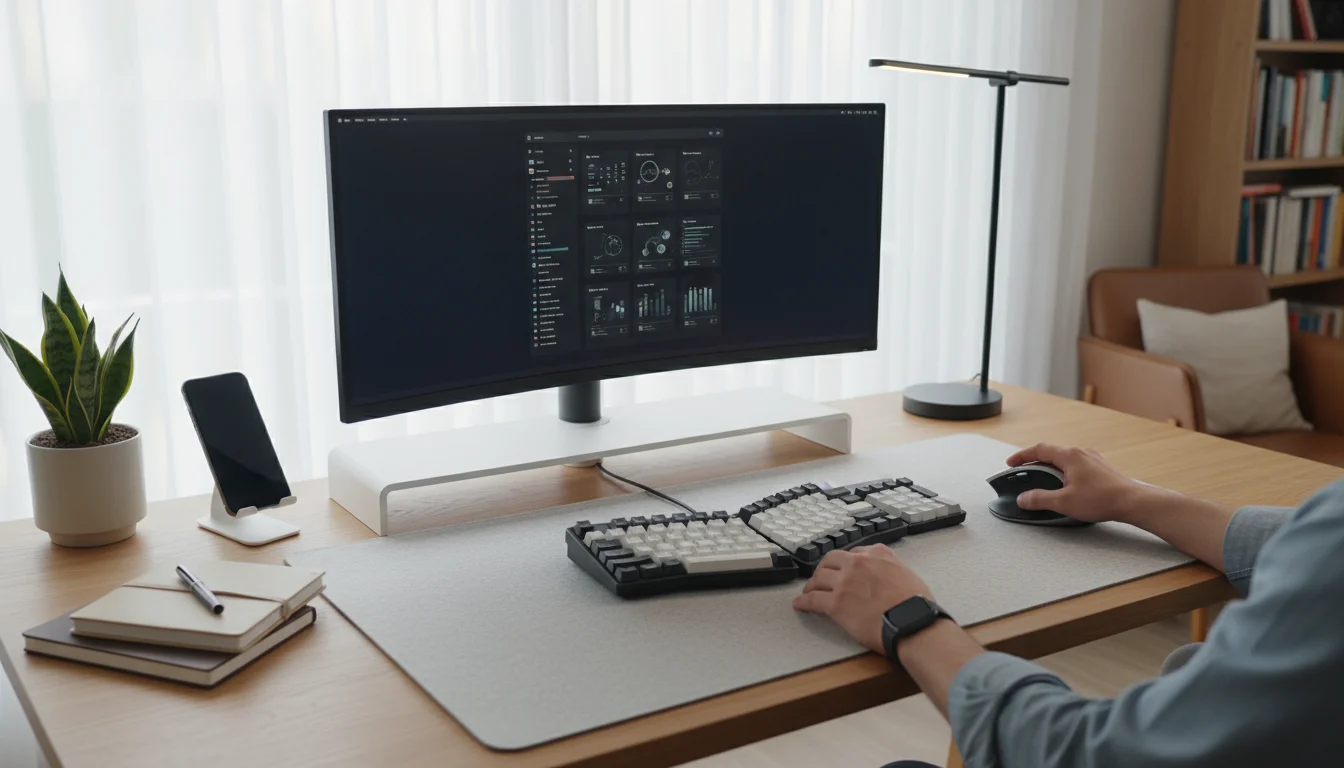
After your chair, your desk and the arrangement of items on it significantly impact your ergonomic office. A well-optimized desk supports neutral posture and efficient workflow.
If you have limited room, consider fold-down desk ideas for tiny home offices to maximize your space.

Desk Height: Sitting or Standing?
Your desk height should allow you to work with your elbows at a 90-degree angle, forearms parallel to the floor, without shrugging your shoulders. Many desks offer fixed heights, but adjustable standing desks provide the ultimate flexibility. A standing desk encourages movement and can alleviate the negative effects of prolonged sitting. If you opt for a standing desk, alternate between sitting and standing throughout the day, ensuring the height is correct for both positions.
Monitor Placement
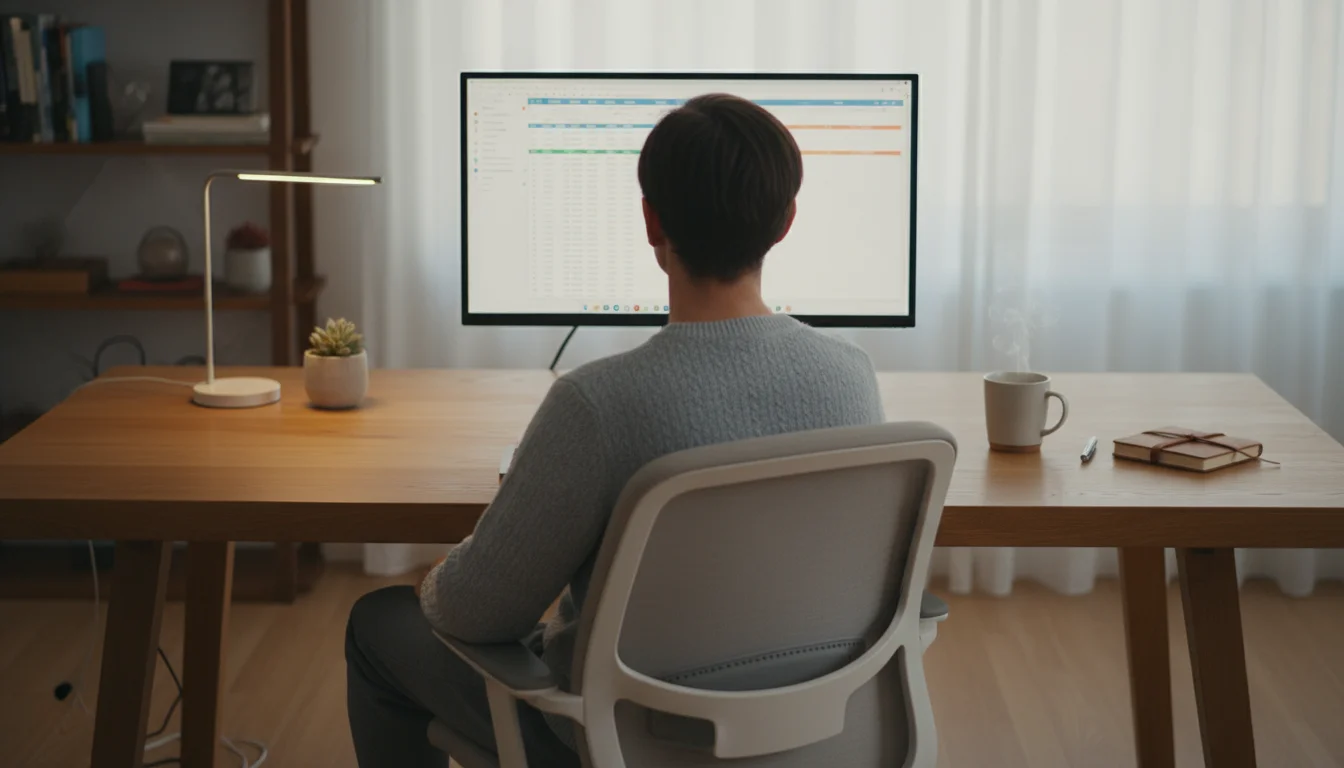
Correct monitor placement prevents neck strain and eye fatigue. Position your monitor directly in front of you, about an arm’s length away (20-30 inches). The top of your screen should be at or slightly below eye level. This ensures you look slightly downward, reducing neck extension. If you use dual monitors, position the primary monitor directly in front, and the secondary monitor to its side, or center both monitors if you use them equally. Use monitor risers or stacks of sturdy books to achieve the correct height. Reduce glare by positioning your monitor perpendicular to windows or using anti-glare screens.

Keyboard and Mouse Positioning
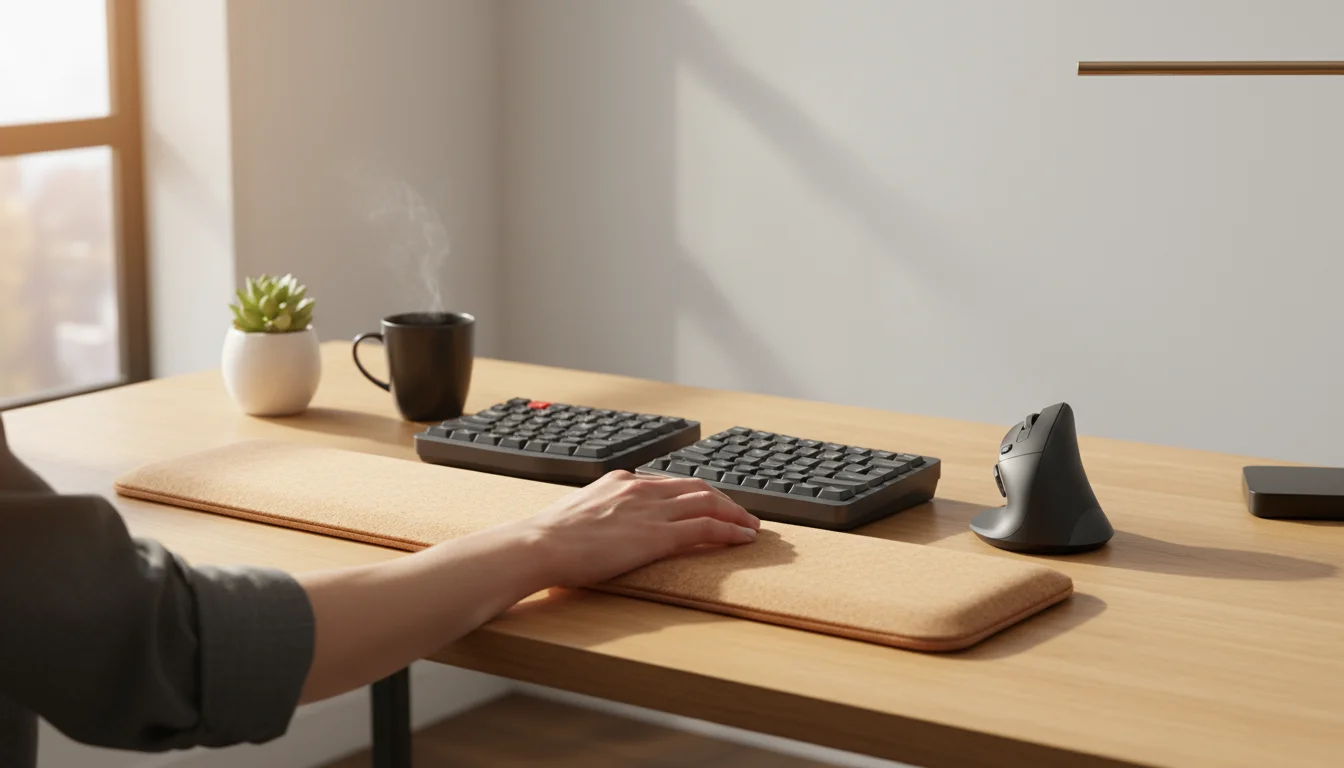
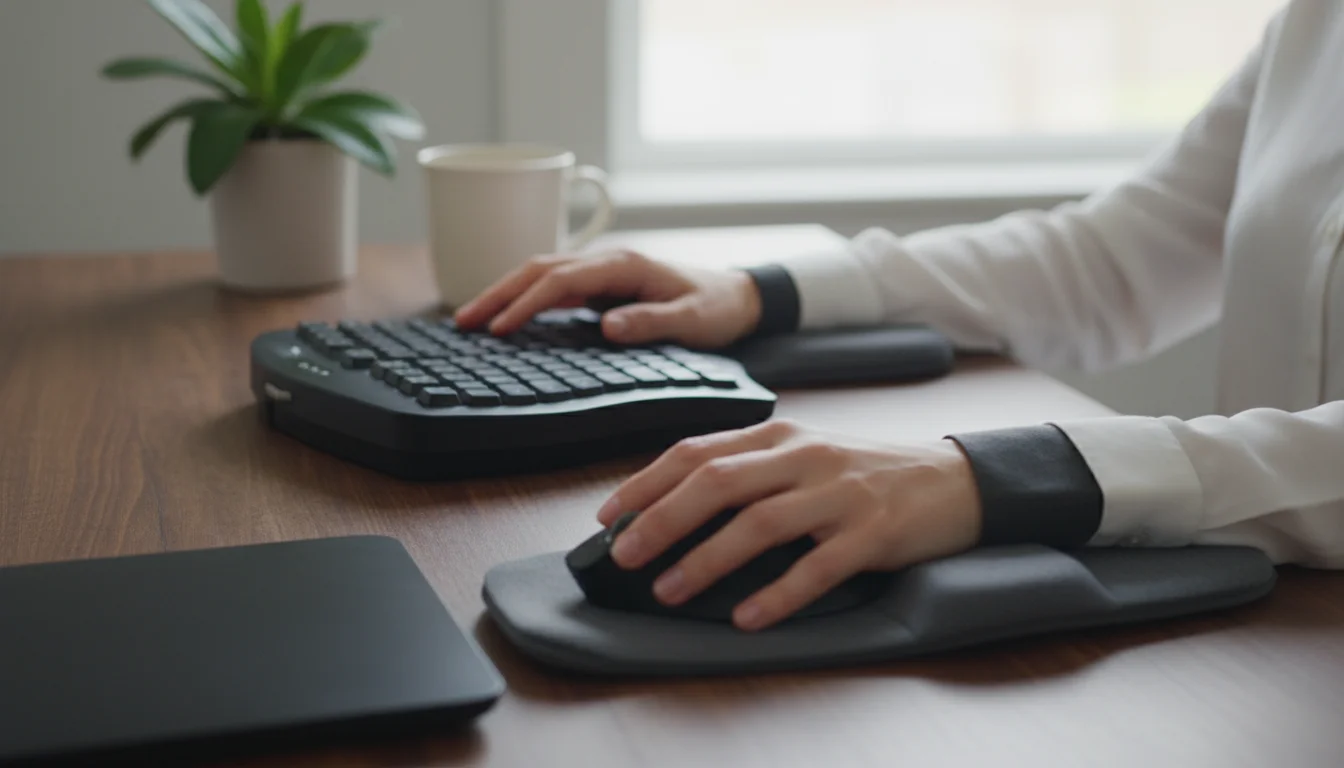
Place your keyboard directly in front of you, close enough so you can keep your elbows at a 90-degree angle, close to your body. Your wrists should remain straight and neutral, not bent up, down, or to the side. Avoid resting your wrists on the desk edge; use a wrist rest if needed, but primarily to take breaks, not for continuous typing. Position your mouse close to your keyboard to avoid reaching, which strains your shoulder. If you use a numerical keypad frequently, consider a separate one to allow closer mouse placement.
Decluttering for Better Workflow
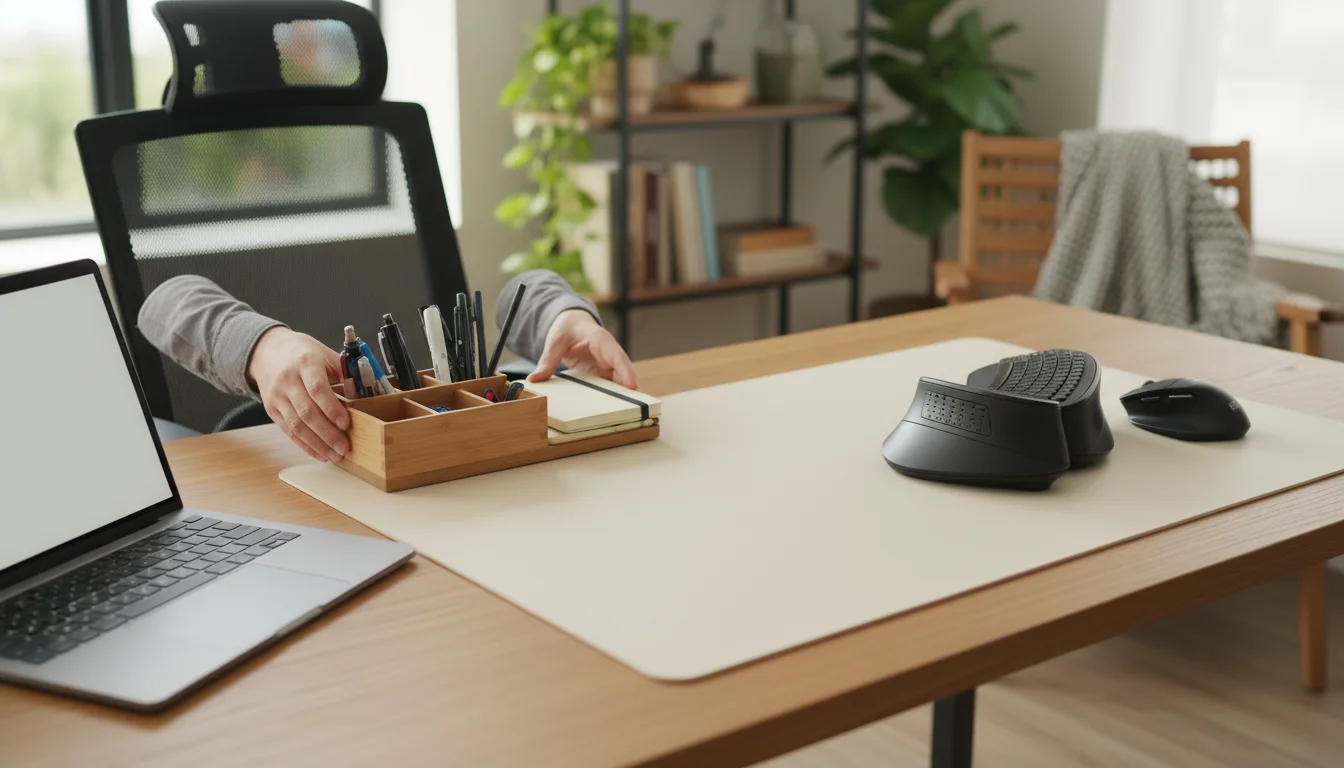
A cluttered desk forces you to stretch and reach, disrupting your ergonomic posture. Keep only essential items within arm’s reach. Designate specific spots for pens, notebooks, and frequently used documents. This not only streamlines your work but also maintains a clear path for your keyboard and mouse, preventing awkward positioning.
The Right Tools: Keyboards, Mice, and Beyond
Beyond your chair and desk, the peripherals you use daily play a critical role in your ergonomic office. Small adjustments here prevent significant strain.
While optimizing your tech setup, it is also wise to consider how to reduce EMF exposure from your electronic devices, especially if your workspace is near your sleeping area.
Ergonomic Keyboards
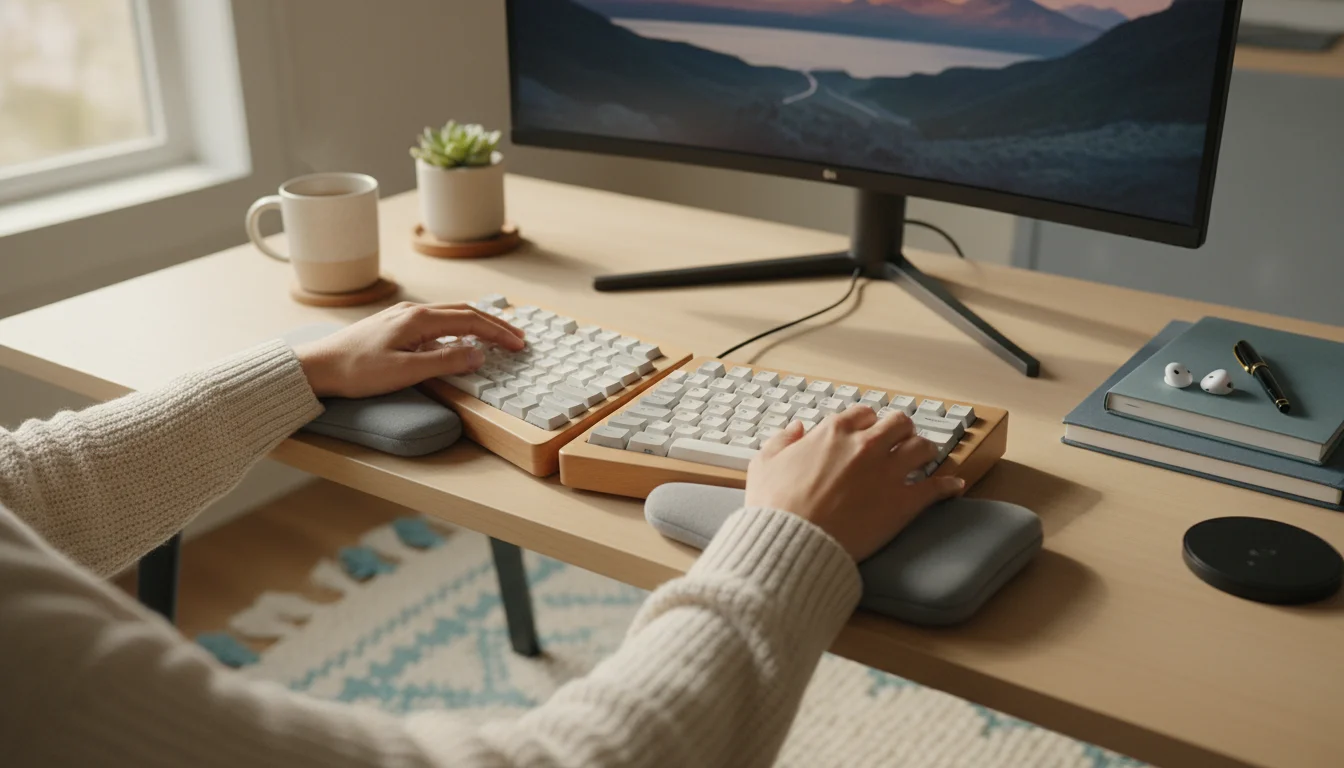
Traditional keyboards can force your wrists into unnatural angles. Ergonomic keyboards come in various designs:
- Split Keyboards: These separate the key layout into two halves, allowing you to position your hands at a more natural, shoulder-width angle, reducing wrist deviation.
- Contoured or Waved Keyboards: They feature a subtle curve that aligns your hands and wrists more comfortably.
- Mechanical Keyboards: While not inherently ergonomic, many users find the tactile feedback and customizable key sensitivity of mechanical keyboards reduce typing effort and discomfort.
Ergonomic Mice
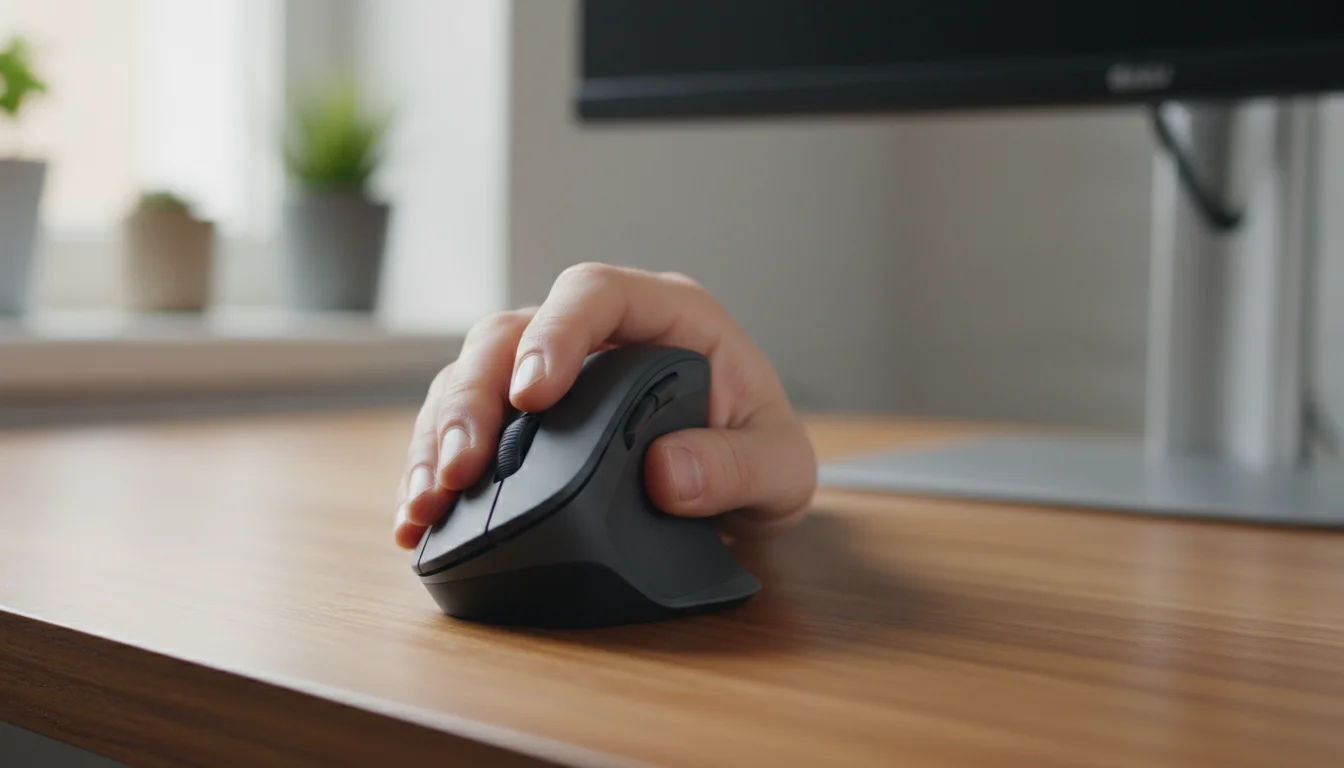
A standard mouse can strain your wrist and forearm over prolonged use. Ergonomic mice aim to keep your hand in a more natural position:
- Vertical Mice: These mice position your hand in a “handshake” grip, reducing forearm pronation (twisting) and wrist strain.
- Trackball Mice: You move the cursor by rolling a ball with your thumb or fingers, eliminating the need to move your entire arm or wrist. This is excellent for limited desk space.
- Touchpads: For laptop users, an external touchpad can offer a more central and neutral hand position than a built-in one.

Headsets and Webcams
If you spend considerable time on calls, an ergonomic headset prevents you from cradling your phone between your ear and shoulder, a common cause of neck pain. Choose a lightweight, comfortable headset with good sound quality. For video calls, position your webcam at eye level to maintain natural eye contact and avoid craning your neck or looking down.
Lighting, Air Quality, and Environmental Factors
Your physical comfort extends beyond your chair and desk. Environmental factors within your home office setup significantly influence your well-being and productivity.
Optimal Lighting
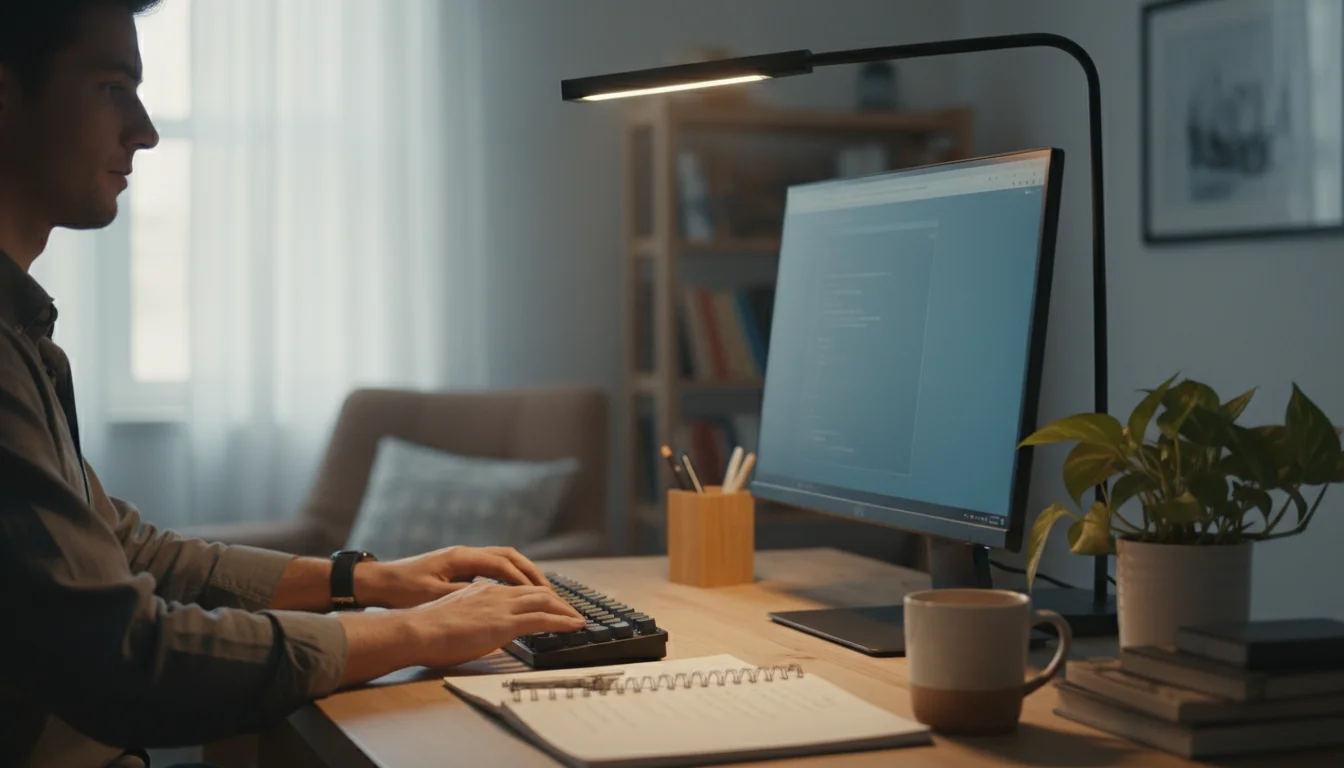
Poor lighting contributes to eye strain, headaches, and fatigue. Ideally, your workspace benefits from natural light. Position your desk to receive indirect natural light, avoiding direct sun which causes glare. If natural light is limited, use a combination of ambient overhead lighting and task lighting. A good desk lamp helps illuminate your work surface without creating glare on your screen. Adjust your screen brightness to match your room’s lighting to reduce eye strain. According to the EPA, proper lighting can also reduce energy consumption when integrated with natural light strategies.

Indoor Air Quality
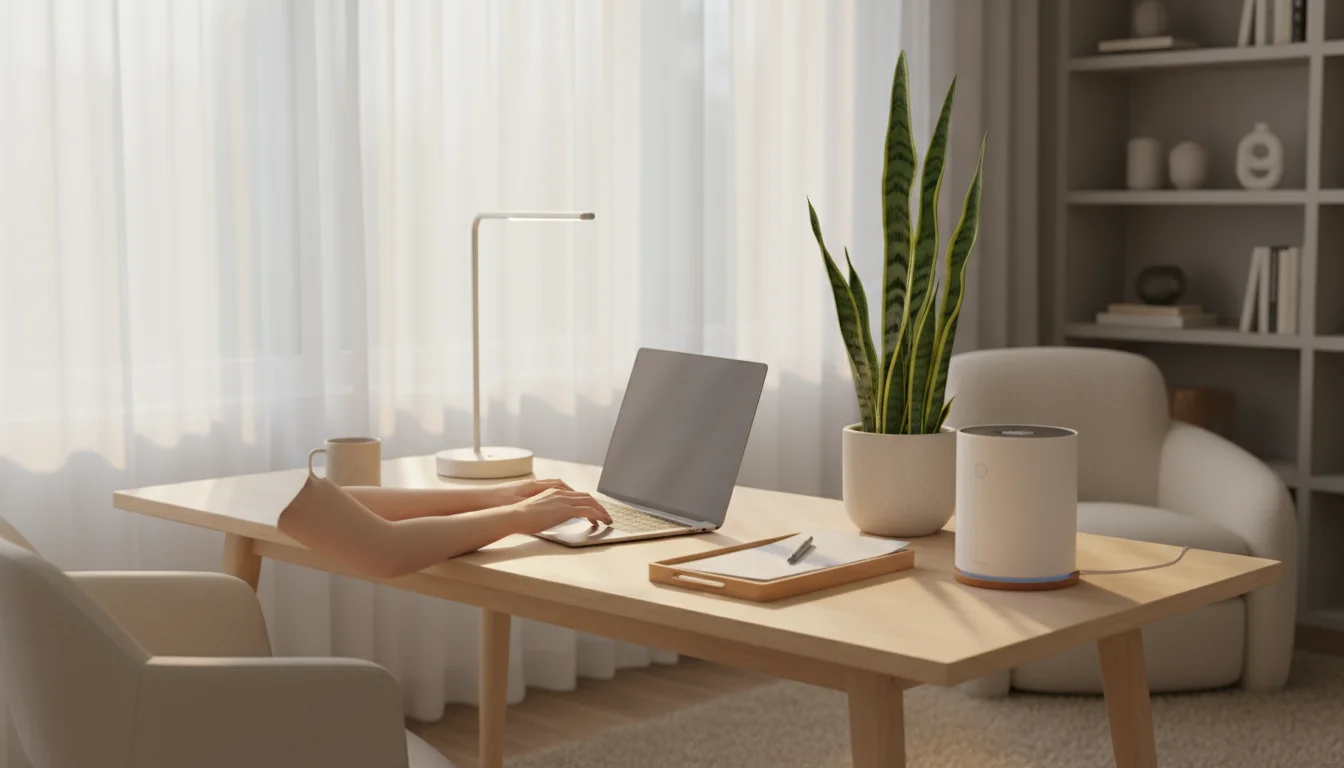
Good indoor air quality is essential for concentration and overall health. Ensure adequate ventilation in your home office. Open windows when possible, or use an air purifier to remove dust, allergens, and pollutants. Houseplants also contribute to better air quality and add a calming natural element to your workspace. Avoid strong artificial scents or air fresheners that might trigger sensitivities.
Temperature and Noise Control
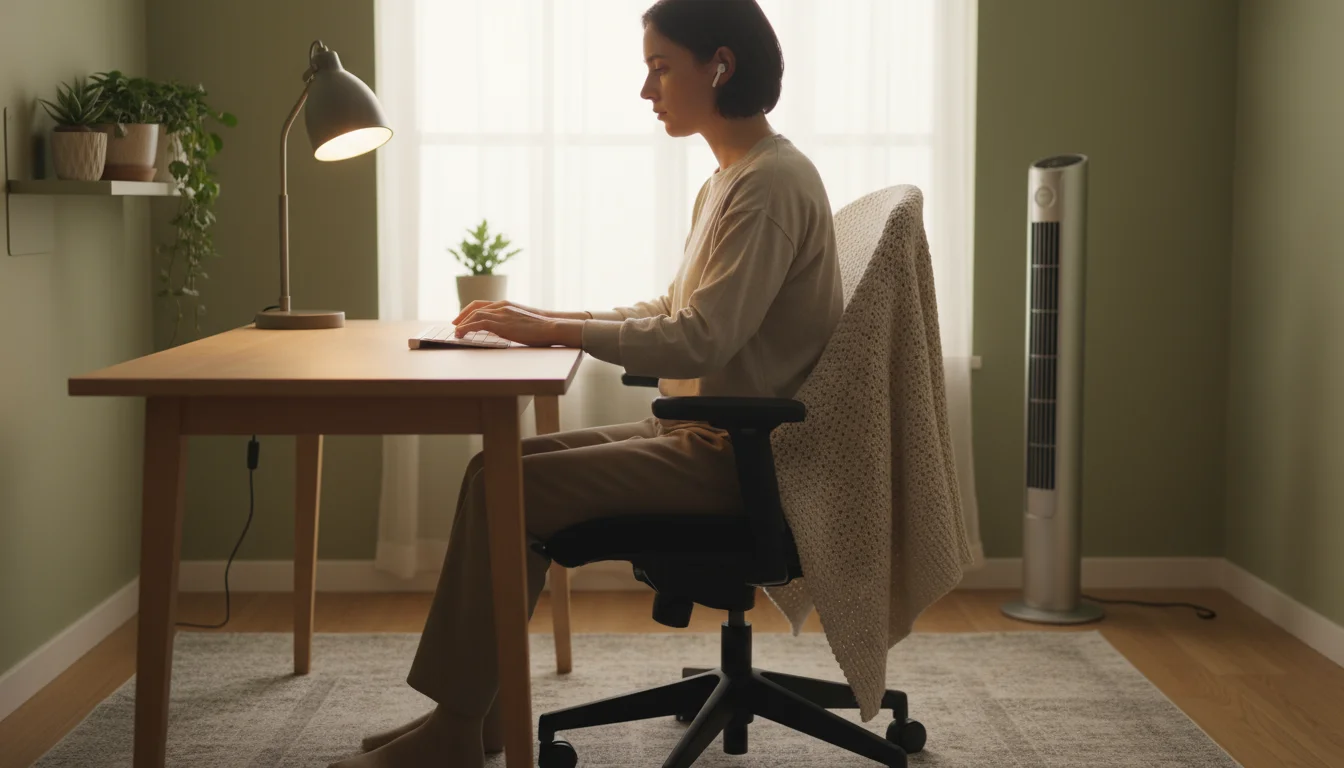
Maintain a comfortable ambient temperature. If your office is too hot or too cold, it becomes a distraction. Use a small fan or heater if necessary. Minimize noise distractions. If you live in a busy environment, consider noise-canceling headphones or strategic placement of furniture to absorb sound. A quiet, comfortable environment helps maintain focus and reduces stress.

Movement and Micro-Breaks: Integrating Activity
Even with the most perfect ergonomic office setup, prolonged static posture is detrimental. Incorporating movement and regular breaks is as vital as your ergonomic equipment.
Your body is designed for movement. Sitting or standing in one position for extended periods reduces blood flow, stiffens muscles, and increases fatigue. Make conscious efforts to move throughout your workday. Aim for a micro-break every 20-30 minutes and a longer break every hour.
Practical Movement Strategies:
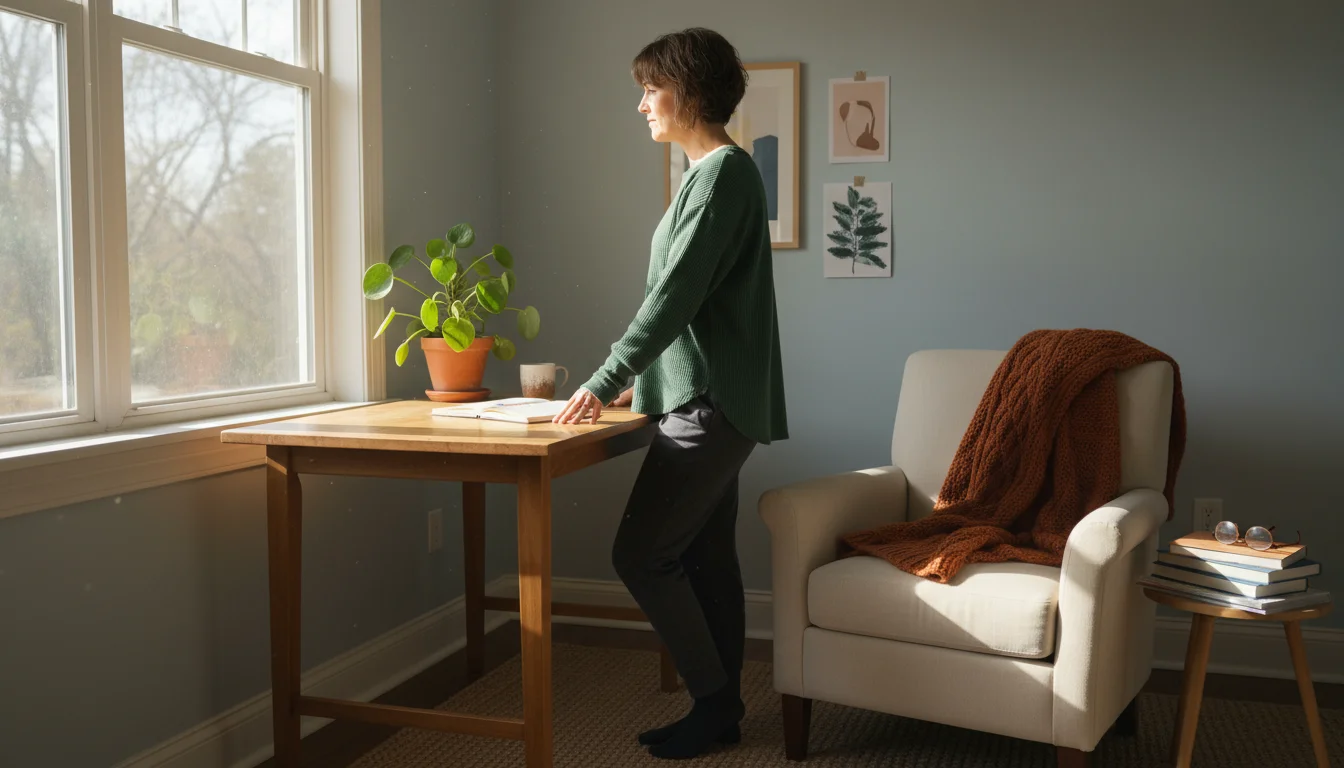
- Stand Up and Stretch: Every 30 minutes, stand up, stretch your arms overhead, gently twist your torso, and roll your shoulders.
- Walk Around: Use phone calls as an opportunity to walk around your home. Walk to the kitchen for water, or step outside for a few minutes.
- Eye Breaks: Follow the 20-20-20 rule. Every 20 minutes, look at something 20 feet away for at least 20 seconds. This relaxes your eye muscles.
- Use Reminders: Set an alarm on your phone or use a desktop application that reminds you to take breaks. Several apps offer guided stretches specifically for office workers.
- Alternate Positions: If you have a standing desk, alternate between sitting and standing regularly. If not, find opportunities to stand for tasks like reading documents or making calls.
These small, consistent movements prevent stiffness, improve circulation, and help you maintain energy levels throughout your workday. Think of them as essential components of your home office setup, just like your ergonomic chair.
Crafting Your Ergonomic Setup: A Step-by-Step Guide
Now, let’s put it all together. Follow these steps to create or adjust your ergonomic office.
- Start with Your Chair:
- Adjust your chair height so your feet are flat on the floor or a footrest, and your knees form a 90-degree angle.
- Position your lower back against the lumbar support, ensuring it maintains the natural curve of your spine.
- Adjust armrests so your shoulders feel relaxed, and your elbows form a 90-degree angle when typing.
- Position Your Monitor:
- Place your monitor directly in front of you, about an arm’s length away.
- Adjust the height so the top of the screen is at or slightly below eye level. Use risers if needed.
- Angle the screen slightly upward if necessary to avoid reflections and maintain a comfortable viewing angle.
- Arrange Keyboard and Mouse:
- Place your keyboard centered in front of you, allowing your wrists to remain straight and neutral.
- Keep your mouse close to the keyboard. Avoid excessive reaching.
- Consider an ergonomic keyboard and mouse if you experience discomfort with standard peripherals.
- Optimize Your Desk Space:
- Clear clutter, keeping only essential items within easy reach.
- Ensure adequate space for documents and other work materials without crowding your main work area.
- Assess Lighting:
- Check for glare on your screen from windows or overhead lights. Adjust blinds or reposition your monitor.
- Add task lighting if your workspace feels dim, ensuring it illuminates your documents without shining directly into your eyes.
- Check Your Posture:
- Sit tall, shoulders relaxed, back supported, feet flat.
- Take a photo of yourself at your desk from the side to objectively review your posture and make adjustments.

Budget-Friendly Ergonomic Solutions for Every Home
An ergonomic office setup does not require you to break the bank. You can implement many effective solutions without purchasing expensive equipment, especially if you have limited space or a tight budget.
DIY Alternatives and Smart Substitutions:
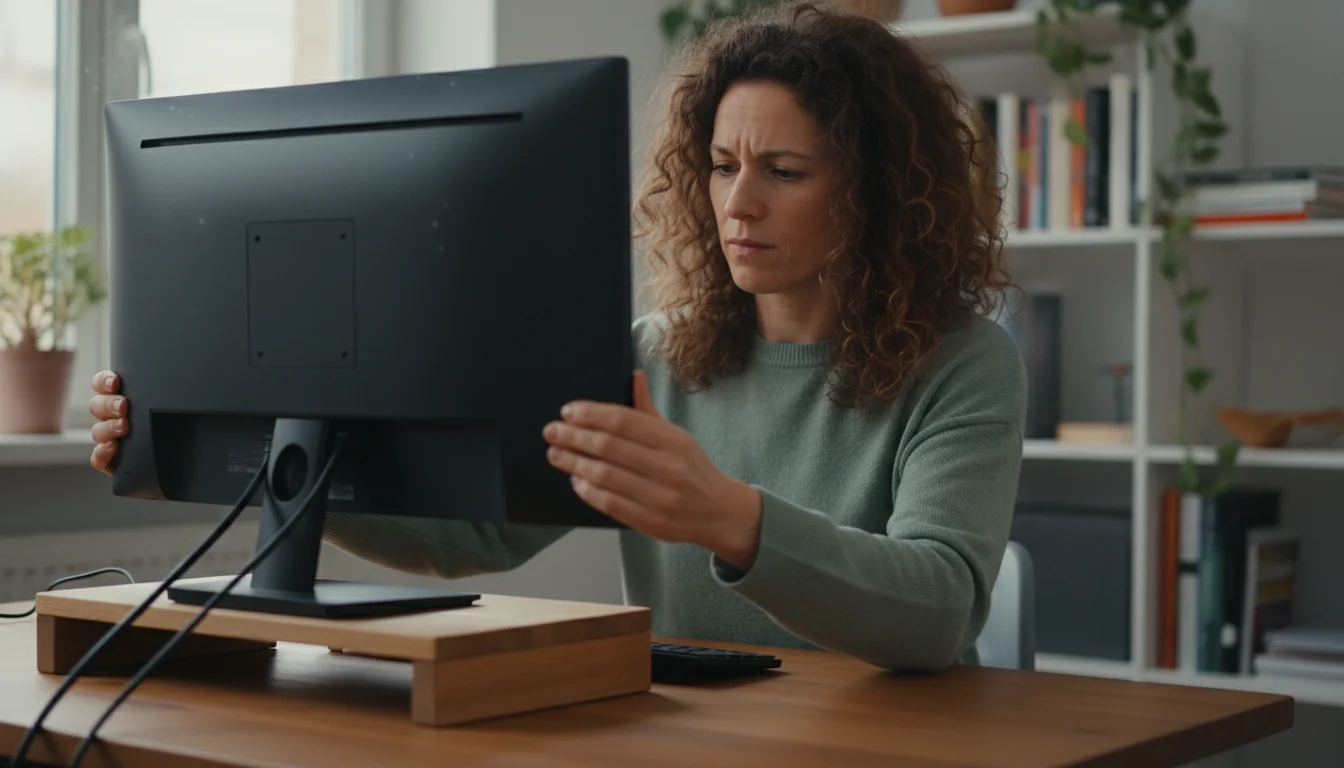
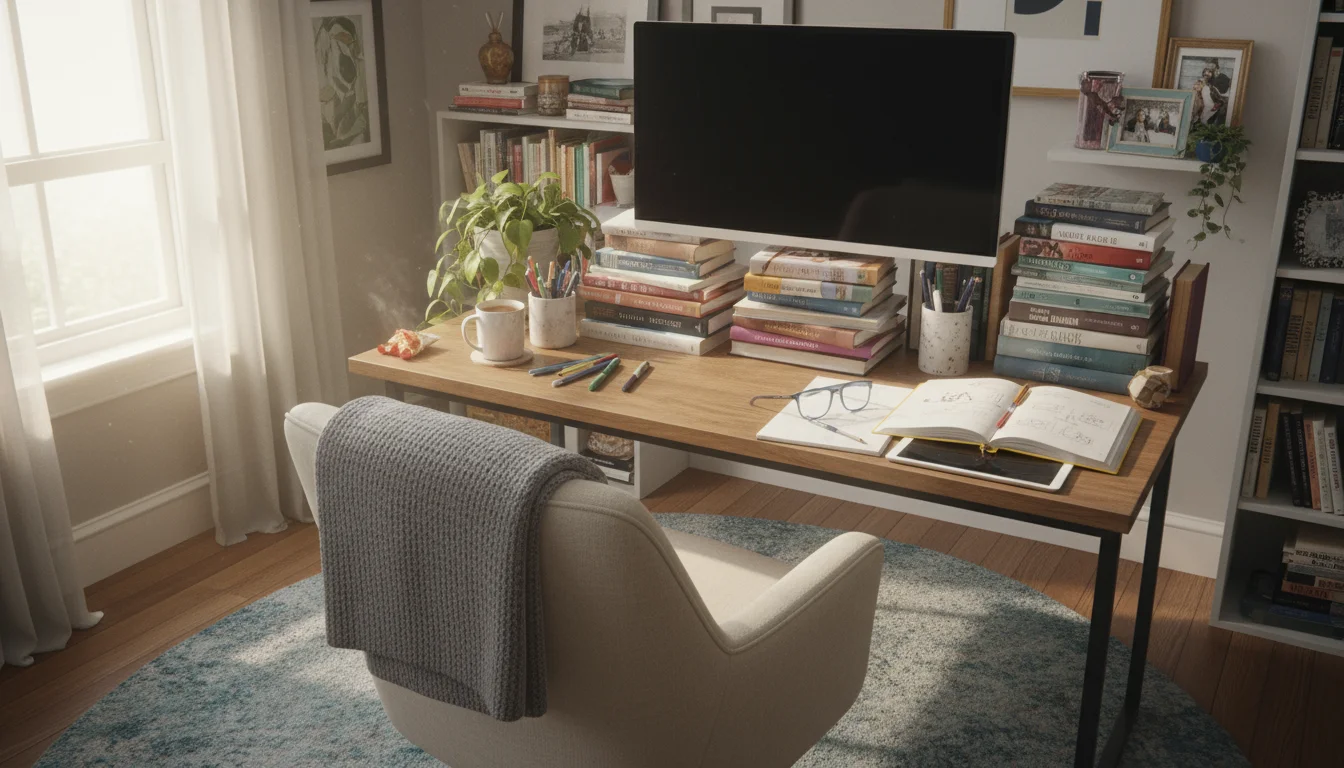
- Monitor Risers: Instead of buying a monitor stand, stack sturdy books, reams of paper, or a stable wooden crate to elevate your screen to the correct eye level.
- Lumbar Support: Roll a towel or small blanket and place it in the curve of your lower back for instant lumbar support in any chair. A small, firm cushion also works well.
- Footrests: Use a sturdy box, a stack of old magazines, or even a small wastebasket turned upside down as a temporary footrest to ensure your feet are flat and knees are at 90 degrees.
- Keyboard and Mouse Pads: While dedicated wrist rests exist, a folded towel or a small cushion can provide temporary wrist support during breaks.

Smart Shopping and Prioritizing Investments:
If you plan to invest, prioritize items based on your most pressing needs and the amount of time you spend working. Your chair often offers the highest return on investment due to the direct impact on back and neck health. However, consider purchasing a quality ergonomic keyboard or mouse if you experience specific wrist or hand pain. Search for sales, look at certified refurbished options, or check local second-hand office supply stores. Sometimes, a slightly used high-quality item outperforms a new, cheaper alternative. As Real Simple advises, smart organizing often means making thoughtful purchases that serve multiple purposes or offer lasting value.

Common Ergonomic Mistakes and How to Avoid Them
Even with good intentions, people often make common mistakes that undermine their ergonomic efforts. Identifying and correcting these errors significantly improves your comfort.
- Slouching or Leaning Forward: Many people start with good posture but gradually slouch. This puts immense pressure on your lower back and neck.
Solution: Ensure your chair provides adequate lumbar support. Set reminders to check your posture every hour. Adjust your monitor closer if you find yourself leaning to see it better.
- Bent Wrists: Typing or mousing with bent wrists (either upward, downward, or to the side) compresses nerves and tendons, leading to pain and conditions like carpal tunnel syndrome.
Solution: Keep your wrists straight and neutral. Adjust your keyboard and mouse placement so your elbows form a 90-degree angle close to your body. Use an ergonomic keyboard or mouse if needed.
- Cradling Your Phone: Holding your phone between your ear and shoulder during calls puts severe strain on your neck muscles.
Solution: Use a headset or speakerphone for calls, especially if they are lengthy. This frees your hands and keeps your neck in a neutral position.
- Lack of Movement and Breaks: Working for hours without moving causes stiffness, fatigue, and reduces circulation, even in a perfectly set-up ergonomic office.
Solution: Implement regular micro-breaks. Stand up, stretch, and walk around for a few minutes every 20-30 minutes. Use the 20-20-20 rule for eye breaks.
- Ignoring Glare and Poor Lighting: Eye strain and headaches result from excessive screen glare or insufficient lighting.
Solution: Position your monitor to avoid direct light sources. Adjust screen brightness. Use task lighting to illuminate your work surface without reflecting off your screen.
- Reaching for Peripherals: Placing frequently used items, like your mouse or phone, too far away causes you to overextend your arm, straining your shoulder and back.
Solution: Keep all essential items within a comfortable reach. Declutter your desk to ensure a clear zone for your primary work tools.
Maintaining Your Ergonomic Home Office
Setting up an ergonomic office is an excellent first step, but ongoing maintenance ensures its long-term effectiveness. Your body changes, and your needs might evolve, so regularly revisit your setup.
- Regular Posture Checks: Make it a habit to perform quick posture checks throughout your workday. Are your shoulders relaxed? Are your wrists straight? Are your feet flat? A simple mental scan helps reinforce good habits.
- Adjust as Needed: Do not be afraid to tweak your setup. If you feel new discomfort, reassess your chair height, monitor position, or accessory placement. Small adjustments can make a big difference.
- Cleanliness and Organization: A clean and organized workspace contributes to mental clarity and prevents physical obstructions. Dust your screen and keyboard regularly. Keep cables tidy to avoid tripping hazards and maintain a streamlined look.
- Listen to Your Body: Your body provides the best feedback. If you consistently experience pain or fatigue in a particular area, it signals a need for further adjustment or a consultation with a specialist.
- Invest in Your Health: View ergonomic improvements as an investment in your health and productivity. Over time, a well-maintained ergonomic office setup significantly reduces the risk of chronic pain and injury.
Frequently Asked Questions
Can I really achieve an ergonomic setup in a small apartment?
Yes, absolutely. Ergonomics focuses on optimizing posture and interaction with your tools, regardless of space size. You can use compact ergonomic furniture, multi-purpose items, and clever storage solutions. Focus on core elements like chair adjustability, monitor height, and proper keyboard/mouse positioning first. Even a small corner can become an ergonomic office with careful planning.
How much should I spend on an ergonomic chair?
Prices vary widely, but you do not always need the most expensive option. For light use (1-2 hours daily), a good quality office chair with basic adjustments might suffice. For heavy use (4+ hours daily), investing in a chair with extensive adjustability for height, back angle, lumbar support, and armrests offers better long-term value and comfort. Expect to spend a few hundred dollars for a solid entry-level ergonomic chair, but higher-end models offer superior durability and customization.
What are the immediate signs of a poor ergonomic setup?
Common immediate signs include neck stiffness, shoulder tension, lower back pain, wrist discomfort or tingling, eye strain, and headaches. You might also find yourself constantly shifting position, unable to find comfort, or feeling more fatigued than usual after short periods of work. Pay attention to any new or persistent discomfort.
Should I use a standing desk?
Standing desks offer benefits by promoting movement and reducing prolonged sitting. However, prolonged standing can also lead to fatigue or discomfort in your feet and legs. The best approach is often a sit-stand desk, allowing you to alternate between positions throughout the day. Listen to your body and find a balance that works for you.
How often should I take breaks?
Aim for short “micro-breaks” every 20-30 minutes, where you stand, stretch, or simply shift your gaze away from your screen for 20-30 seconds. Plan for a longer break, such as 5-10 minutes, every hour or two. These breaks are crucial for reducing muscle fatigue, improving circulation, and preventing eye strain, significantly enhancing your overall comfort and focus.
For expert home organization guidance, visit
Institute for Challenging Disorganization, Consumer Reports — Home and This Old House.
Disclaimer: This article is for informational purposes only and is not a substitute for professional advice. Consult professional organizers or specialists for personalized recommendations.
Many of the best indoor plants for bedroom air quality thrive in office settings as well, providing a natural boost to your environment.
To prevent dry eyes and respiratory irritation during long work sessions, consider using one of the best humidifiers for dry indoor air to balance your office humidity.









Leave a Reply