

The human head weighs about 10 to 12 pounds. When you tilt it forward just 15 degrees to peer at a laptop screen, the strain on your neck increases to 27 pounds. Tilt it 45 degrees, and you ask your neck muscles to support nearly 50 pounds. This simple biomechanical reality explains exactly why your shoulders burn and your lower back aches after a long day of remote work. Building a functional workspace goes far beyond selecting furniture that matches your decor; it requires an intentional approach to your physical well-being.
Establishing a supportive workspace is one of many effective ways to reduce stress at home and improve your focus throughout the day.
Whether you work remotely full-time or manage household paperwork on the weekends, an ergonomic home office setup transforms your daily experience. When your body feels supported, your mind focuses entirely on the task at hand. You stop shifting in your seat, you stop rubbing your temples, and you reclaim the energy that poor posture quietly steals from you throughout the day.
Creating this supportive environment does not require a corporate-sized budget, but it does demand a strategic understanding of how your body interacts with your tools. From aligning your monitor to selecting the right chair, every millimeter matters. Let us examine the exact specifications, measurements, and habits you need to build a workspace that actively supports your long-term health.
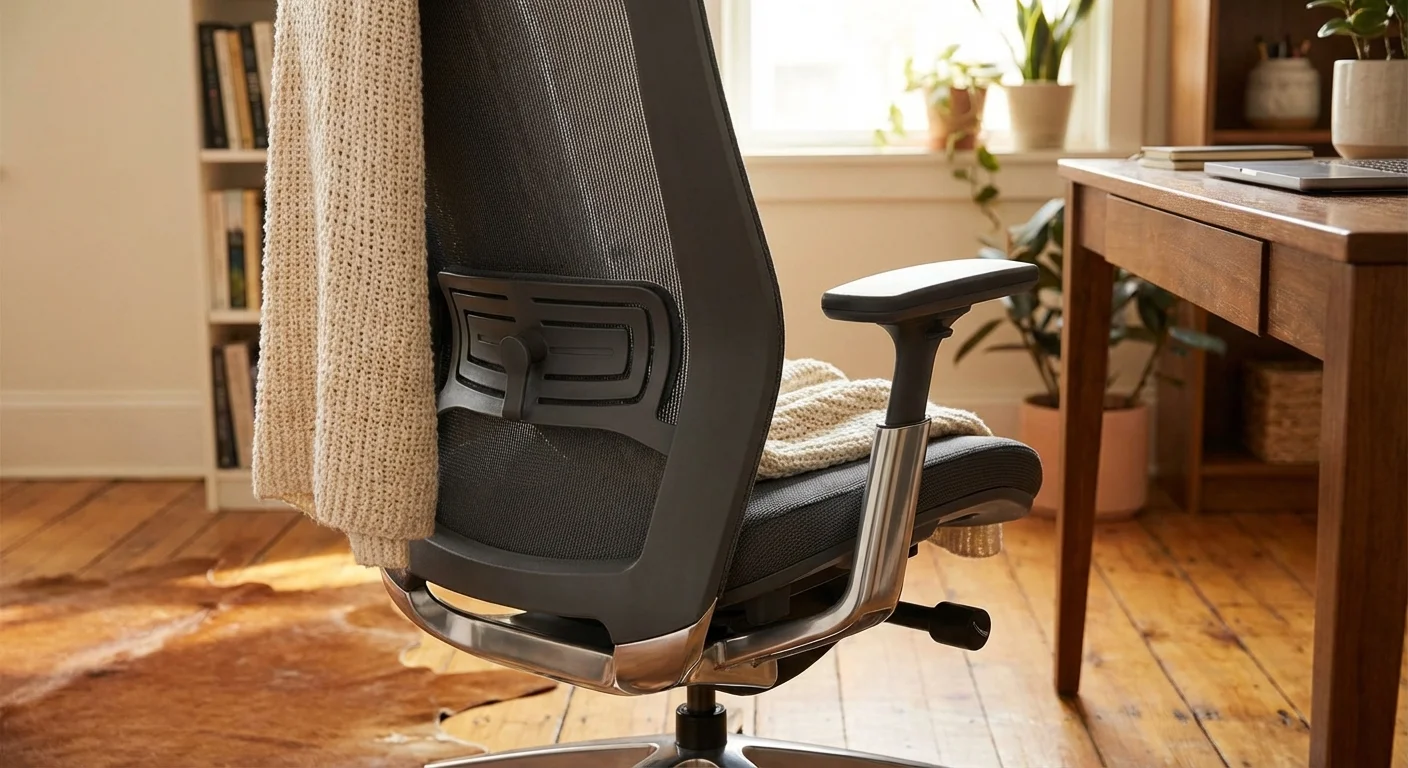
The Core of Your Setup: Finding the Best Ergonomic Desk Chair
You spend roughly 2,000 hours a year sitting at your desk. Your chair serves as the primary interface between your body and your work, making it the single most important investment in your office. The best ergonomic desk chair adapts to your unique proportions rather than forcing your body to conform to its rigid shape.
In addition to physical comfort, implementing a sound home office organization system ensures that your productivity isn’t hindered by misplaced documents or desktop clutter.
When evaluating chairs, prioritize adjustability over aesthetics. A truly ergonomic chair offers independent adjustments for seat height, seat depth, backrest angle, and armrest position. Look for a pneumatic height adjustment lever that allows you to effortlessly position your feet flat on the floor with your thighs parallel to the ground.
Seat depth often goes overlooked, yet it plays a critical role in blood circulation. When you sit all the way back against the lumbar support, you should have roughly two to three fingers of space between the back of your knees and the front edge of the seat pan. If the seat presses into your calves, it restricts blood flow to your lower legs; if it falls too short, it places excessive pressure on your thighs.
The backrest must feature pronounced lumbar support that fits snugly into the natural inward curve of your lower back. Many high-quality chairs feature depth-adjustable lumbar pads. For independent testing and reviews of specific models that maintain their support over time, Consumer Reports offers rigorous evaluations of office furniture durability and ergonomic compliance.
Finally, examine the armrests. They should adjust vertically and laterally. Set them so your shoulders remain completely relaxed while your forearms rest comfortably, keeping your elbows bent at a 90-degree angle. If the armrests force you to shrug your shoulders, they will cause significant tension in your neck by mid-afternoon.
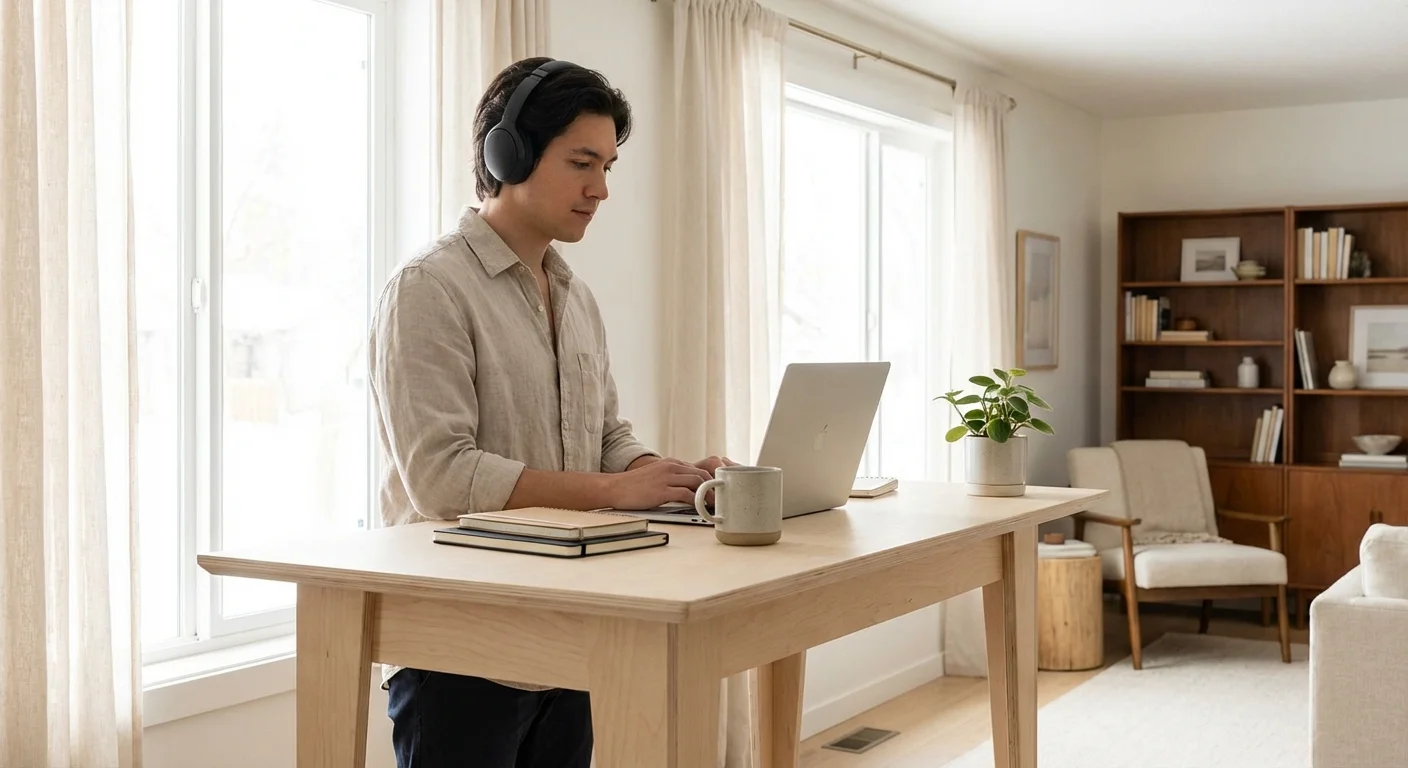
Establishing Your Workspace Foundation: A Practical Standing Desk Guide
The human body thrives on movement, making the transition between sitting and standing vital for your metabolic health and joint mobility. An adjustable sit-stand desk allows you to change your posture seamlessly throughout the day without interrupting your workflow.
If you want to stay active while working, consider how a dedicated home gym setup can complement your ergonomic habits during your breaks.
If you are working with limited square footage, consider these fold-down desk ideas to maximize your space without compromising on comfort.
When selecting a standing desk, stability represents the most critical feature. A desk that wobbles when raised to standing height will cause your monitor to shake as you type, leading to severe eye strain and frustration. Look for dual-motor frames with thick steel legs and cross-support brackets.
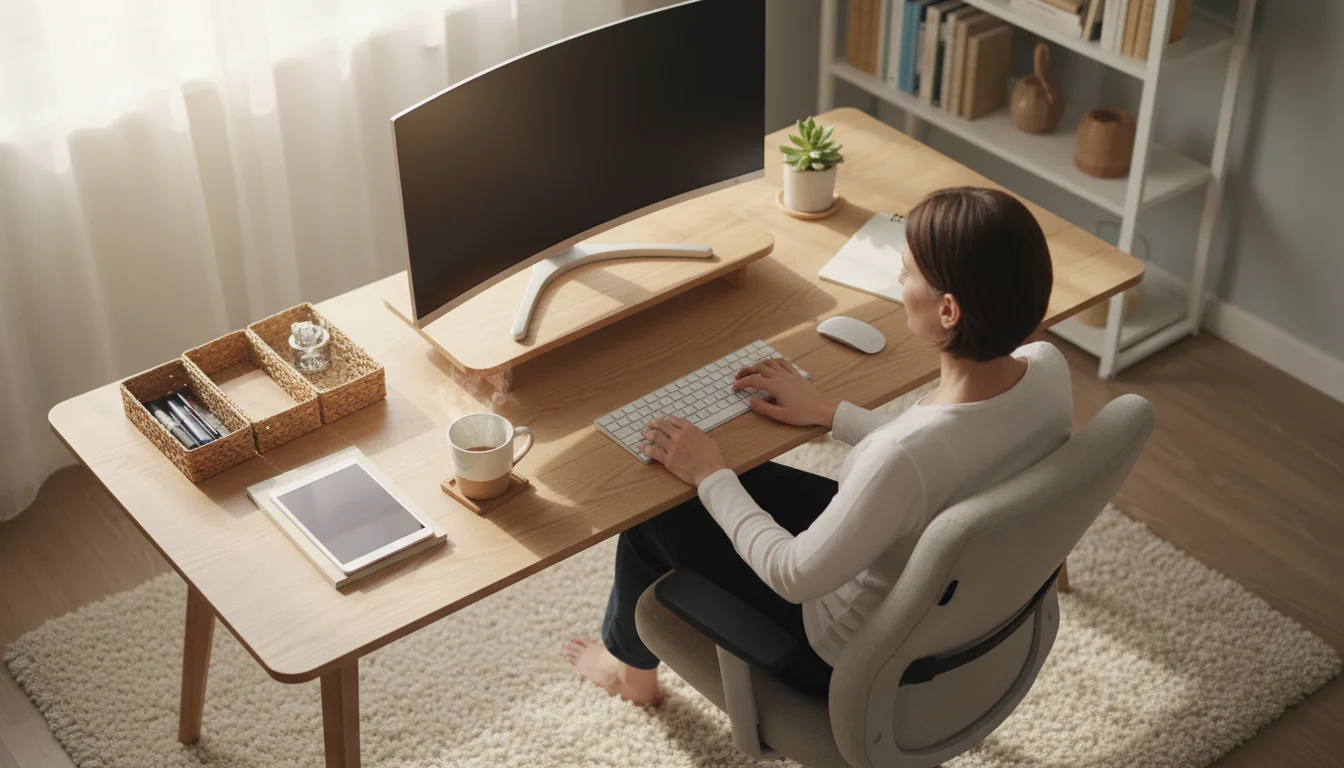
Programming your desk height requires exact measurements. When sitting, your desk surface should sit exactly at resting elbow height. Apply the same rule when standing. Rest your fingers on your keyboard with your shoulders down and relaxed; your elbows must form a 90- to 100-degree angle. If you have to lift your forearms to reach the keys, lower the desk.
Transitioning to a standing setup requires pacing. Standing all day proves just as detrimental to your joints as sitting all day. Start by standing for 15 minutes every hour. Gradually increase your standing intervals, but aim for a balanced 50/50 split between sitting and standing. To reduce fatigue while standing, invest in a high-density polyurethane anti-fatigue mat. This encourages subtle micro-movements in your calves and provides necessary cushioning for your heels.
Desk Type Comparison
Understanding the variations in desk types helps you allocate your budget effectively. Consider this breakdown of workspace foundations:
| Desk Type | Best For | Ergonomic Advantage | Key Limitation |
|---|---|---|---|
| Electric Sit-Stand Desk | Full-time remote workers seeking maximum flexibility. | Allows instantaneous posture changes with programmable memory presets. | Requires proximity to an electrical outlet; higher price point. |
| Manual Crank Adjustable Desk | Budget-conscious buyers or those in spaces without accessible outlets. | Provides the benefits of height adjustment without electrical reliance. | Slow transition speed discourages frequent posture changes. |
| Fixed-Height Desk | Occasional computer use or reading/writing tasks. | Maximum stability and weight capacity. | Locks the user into a single posture; requires an adjustable footrest for shorter users. |
| Standing Desk Converter | Renters or individuals who cannot replace their existing built-in desks. | Transforms a static desk into a dynamic workspace cost-effectively. | Raises the minimum keyboard height, which may disrupt seated ergonomics. |
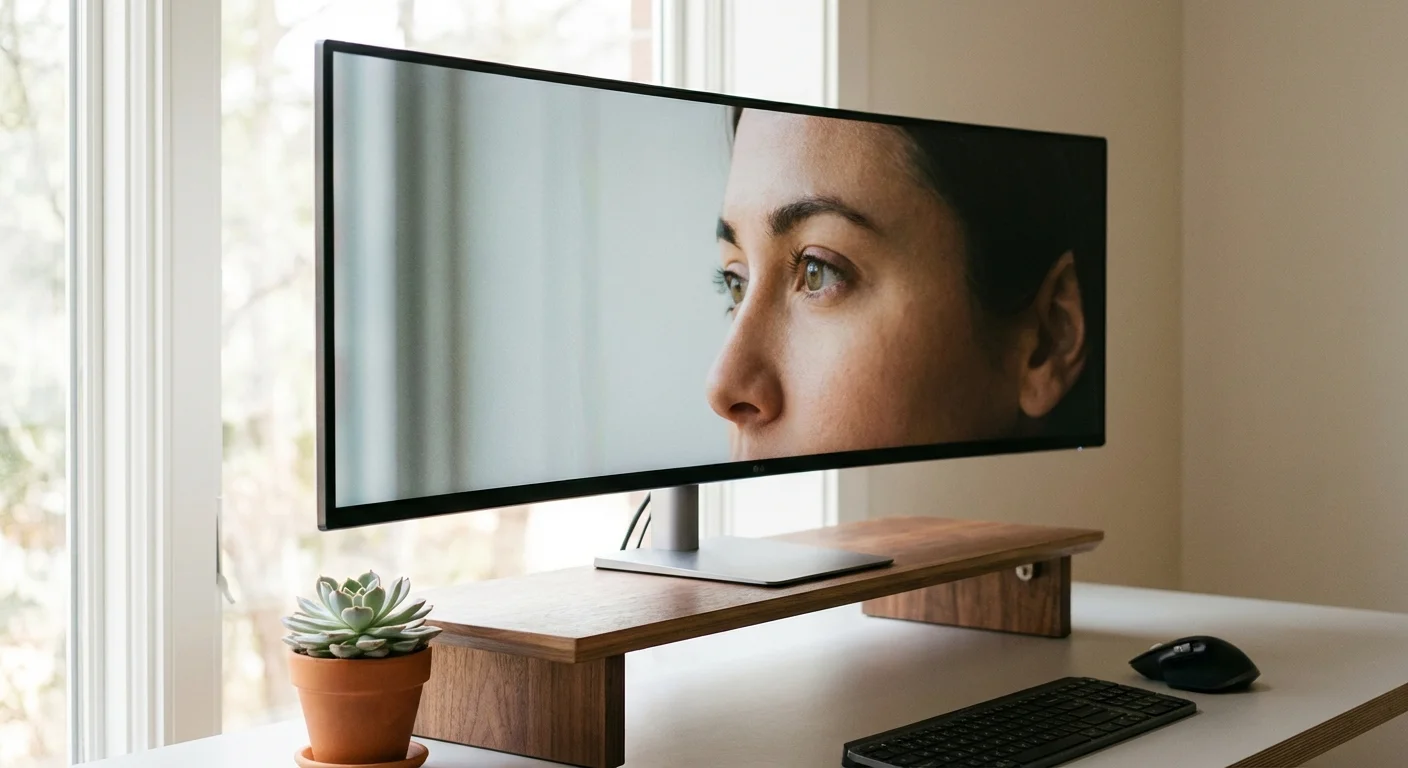
Perfecting Your Monitor Alignment and Visual Ergonomics
Your eyes dictate your posture. If your monitor sits too low, your head will drop forward. If your monitor sits too far away, you will instinctively lean into the screen, rounding your shoulders and compromising your lower back.
Position your primary monitor directly in front of you at exactly an arm’s length away. The top third of the screen should align precisely with your eye level when you sit up straight. This alignment ensures you gaze slightly downward to read the center of the screen, which represents the natural resting position of the human eye.
If you use a laptop as your primary device, you must decouple the screen from the keyboard. Using a laptop flat on a desk guarantees terrible posture. Elevate the laptop on a dedicated stand until the screen reaches eye level, and connect an external keyboard and mouse.
For dual monitor setups, placement depends on your usage patterns. If you use both screens equally, center the seam between the two monitors directly in front of your nose and angle them inward slightly to create a shallow arc. If you use one screen primarily and the other for reference, position the primary monitor directly in front of you and place the secondary monitor immediately adjacent, angled inward. Avoid wide gaps between screens that force excessive neck rotation.
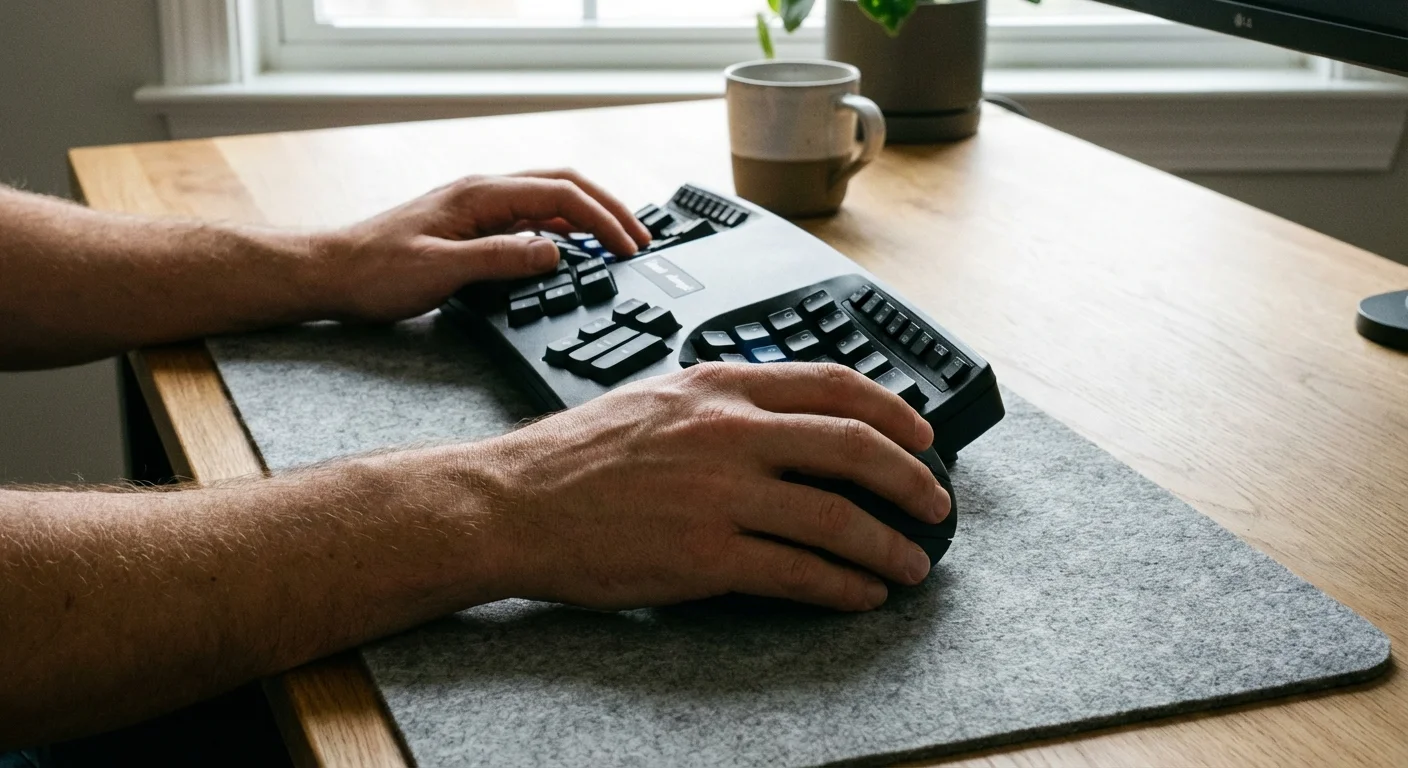
Selecting Keyboards and Mice to Prevent Repetitive Strain
Your hands interact with your keyboard and mouse thousands of times per day. Standard, flat keyboards force your wrists to bend outward, a posture known as ulnar deviation. Over time, this unnatural angle compresses the median nerve and contributes to carpal tunnel syndrome.
Focusing on these subtle tool adjustments is vital to prevent pain and injury that often results from hours of repetitive computer use.
Switching to a split ergonomic keyboard allows your hands to rest at shoulder width, keeping your wrists perfectly straight. Some models also feature “tenting,” meaning the keyboard rises slightly in the center to accommodate the natural pronation of your forearms.
Similarly, standard mice force your hand to lie flat against the desk. A vertical ergonomic mouse turns your hand sideways into a “handshake” position. This shift transfers the movement load from your delicate wrist tendons to the larger, stronger muscles of your forearm and shoulder.
When operating your mouse, pivot from your elbow rather than anchoring your wrist to the desk. Use a keyboard tray if your desk sits too high, ensuring your wrists hover neutrally over the keys rather than bending aggressively upward.

Lighting and Atmosphere: Underrated Home Office Health Tips
Lighting profoundly impacts your energy levels, circadian rhythm, and visual comfort. Harsh overhead lighting washes out screens and creates harsh shadows, while dim lighting forces you to squint, triggering tension headaches.
To create a more balanced environment, you might also explore cozy reading nook ideas that offer a secondary retreat for screen-free tasks.
Beyond the clinical setup, learning how to create a cozy home office ensures the space feels inviting rather than strictly utilitarian.
Layer your lighting to create an optimal visual environment. Start with natural daylight. Position your desk perpendicular to windows rather than directly in front of or behind them. Facing a window creates blinding contrast, while sitting with your back to a window causes massive glare on your screen.
Supplement natural light with adjustable ambient lighting and focused task lighting. An articulated desk lamp provides directional light for reading physical documents without shining directly onto your monitor. For excellent guidance on layering light sources and managing cord clutter in your workspace, review the styling guides at Apartment Therapy, which routinely showcase functional, beautifully lit home offices.
Implement the 20-20-20 rule to combat digital eye strain: every 20 minutes, look at an object at least 20 feet away for a minimum of 20 seconds. This brief pause forces the ciliary muscles in your eyes to relax, preventing the blurred vision and dryness associated with prolonged screen time.
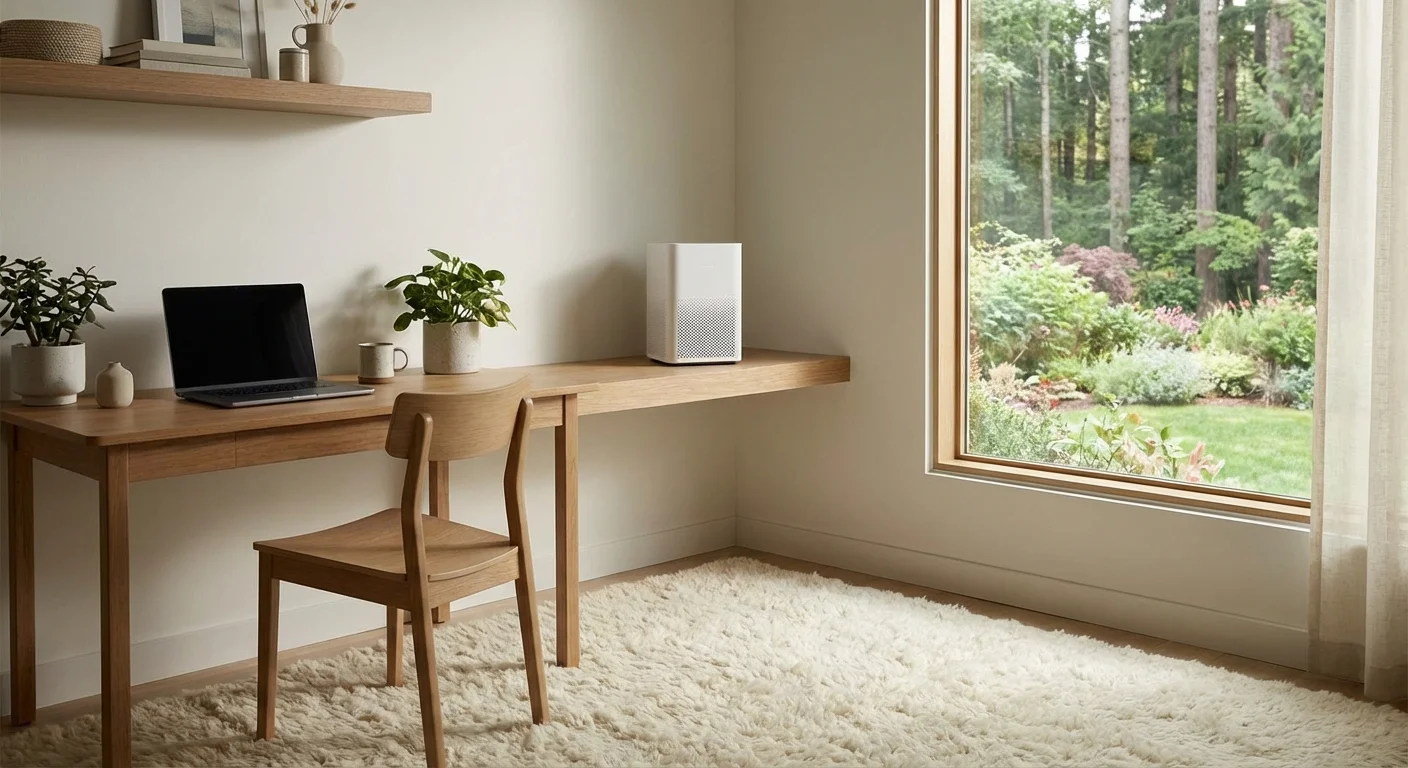
Controlling Your Environment: Temperature, Air Quality, and Acoustics
Ergonomics extends beyond physical furniture to encompass environmental comfort. If your home office feels cold, your muscles tense up, elevating your shoulders toward your ears. If the space feels overly warm, cognitive function declines and lethargy sets in.
Many of these environmental factors, such as light and noise management, are also key to optimizing your sleep environment for better overall physical recovery.
Maintain your workspace temperature between 68 and 72 degrees Fahrenheit. If you cannot control the central thermostat, utilize a small space heater or a circulating fan near your desk. Keep the airflow indirect; constant drafts directed at your neck or shoulders cause localized muscle stiffness.
Acoustics heavily influence your stress levels. Echoes and background noise force your brain to filter out distractions, draining mental energy. Introduce soft materials to absorb sound waves. Area rugs, heavy curtains, and upholstered furniture significantly reduce reverberation. If household noise proves unavoidable, invest in high-quality active noise-canceling headphones to preserve your focus.
“A workspace that supports your physical body allows your mind to focus entirely on the task at hand. When we eliminate physical friction from our environment, we unlock our truest creative potential.” — Sarah Giller Nelson, Home Organizing Expert

Common Mistakes to Avoid
Even with premium equipment, bad habits quickly sabotage your ergonomic work from home setup. Avoid these frequent missteps:
A comprehensive approach to home office organization is vital for maintaining the clear surfaces required for proper arm and wrist movement.
- Dangling Feet: If your feet do not rest firmly on the floor, the edge of your chair cuts off circulation to your legs. If lowering your chair makes your desk too high, use a firm, angled footrest to bridge the gap.
- The “Turtle” Posture: Stress and intense concentration cause people to unconsciously push their chin forward toward the screen. Check your alignment hourly; gently tuck your chin back so your ears align directly over your shoulders.
- Working from the Sofa: The soft cushions of a sofa offer zero pelvic or lumbar support. While acceptable for a 15-minute email check, sofa working guarantees lower back pain if sustained for hours.
- Ignoring Cable Clutter: Tangled cords under your desk prevent you from stretching your legs out fully. Use cable sleeves and under-desk trays to keep the floor clear, allowing you to move your feet freely. Resources like The Spruce offer practical cord management strategies that keep spaces visually and physically clear.

Integrating Movement Into Your Daily Routine
The perfect ergonomic setup fails if you lock yourself into a single static posture for eight hours. Your body requires dynamic movement to lubricate joints and circulate blood.
Design your space to encourage micro-movements. Place your printer or trash can on the opposite side of the room, forcing you to stand up to use them. Keep a glass of water on your desk rather than a large pitcher, guaranteeing you will walk to the kitchen for refills.
Take deliberate movement breaks. Perform simple stretches directly at your desk. Roll your shoulders backward, stretch your arms overhead, and gently rotate your wrists. These brief interventions interrupt the static loading on your muscles, preventing stiffness from compounding over the course of the workday.
Frequently Asked Questions
How high should my desk be for optimal ergonomics?
Your desk height depends entirely on your seated elbow height. When you sit with your shoulders relaxed and your feet flat on the floor, your desk surface should sit precisely at the level of your elbows. For the average person, this typically falls between 28 and 30 inches, though petite users may need a desk as low as 24 inches.
Are gaming chairs actually good for office work?
While gaming chairs offer striking aesthetics and high backrests, they often lack crucial ergonomic features. Many feature pronounced bucket seats with raised side bolsters that restrict leg movement, and they frequently rely on simple pillows rather than integrated, adjustable lumbar support. A dedicated ergonomic office chair almost always provides superior long-term support.
Do I really need an ergonomic mouse?
If you experience pain in your wrist, forearm, or shoulder, an ergonomic vertical mouse provides immediate relief. By rotating your hand into a handshake position, you eliminate the twisting of your forearm bones (radius and ulna) and reduce strain on your carpal tunnel. Even if you do not currently experience pain, a vertical mouse serves as excellent preventative care.
Can a standing desk help with lower back pain?
Yes, alternating between sitting and standing significantly reduces the constant compressive force on your lower lumbar discs. However, standing static for long periods introduces different issues, such as foot and knee pain. The relief comes from the transition and the movement, not simply from the act of standing.
Moving Forward with Your Workspace
Optimizing your workspace does not happen in a single afternoon. Start by assessing your current points of friction. Do your wrists ache at the end of the day? Elevate your laptop and add an external keyboard. Does your lower back feel tight? Focus on adjusting your chair’s lumbar support and seat depth. Implement these changes gradually, listening closely to how your body responds to each adjustment.
Treat your home office as an evolving environment. As your workload, technology, and physical needs change, your setup must adapt accordingly. By prioritizing ergonomics today, you protect your physical health, enhance your daily comfort, and ensure you possess the energy to enjoy your life long after you log off for the evening.
This guide provides general home improvement information. Every home is different—what works in one space may need adaptation in yours. For structural changes or electrical/plumbing work, consult a licensed professional.
Last updated: February 2026







Leave a Reply